Changelog
Daily Round-up
- Fixed XYZ
- Fixed another thing
- Tweaked another thing
Badge Subtitles
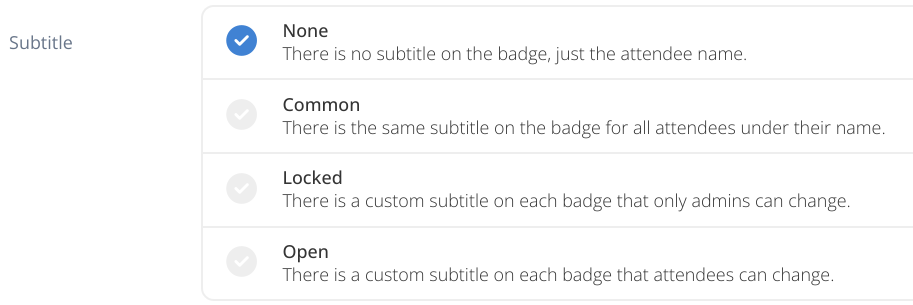
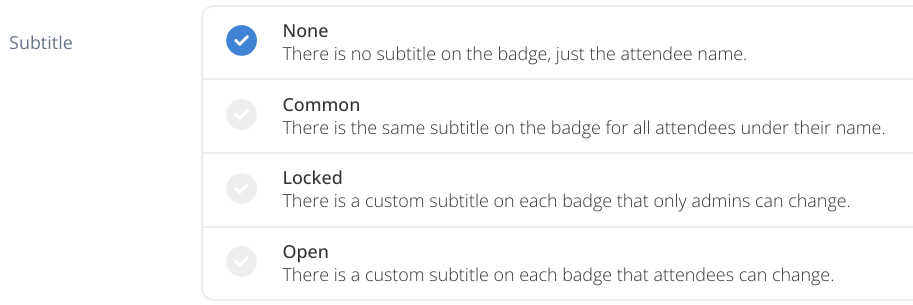
You can now optionally allow for badges to have subtitles that can either be pulled in from captured data during registration, manually entered by admins, or even edited by attendees themselves.
Quick Guide
When configuring a badge type there is a new Subtitle input under the Design tab. You can enable subtitles by selecting one of three options which will in turn reveal further inputs depending which one you choose.
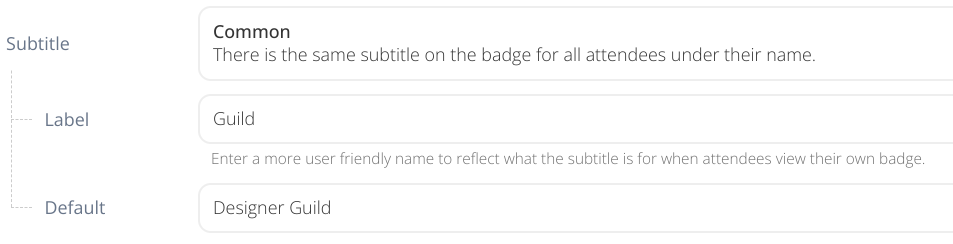
A Common subtitle means every holder of that badge type will have the same subtitle as each other. You can provide a Label to describe the purpose of the subtitle to attendees, though this does not appear on the badge itself, and then the Default text that appears.
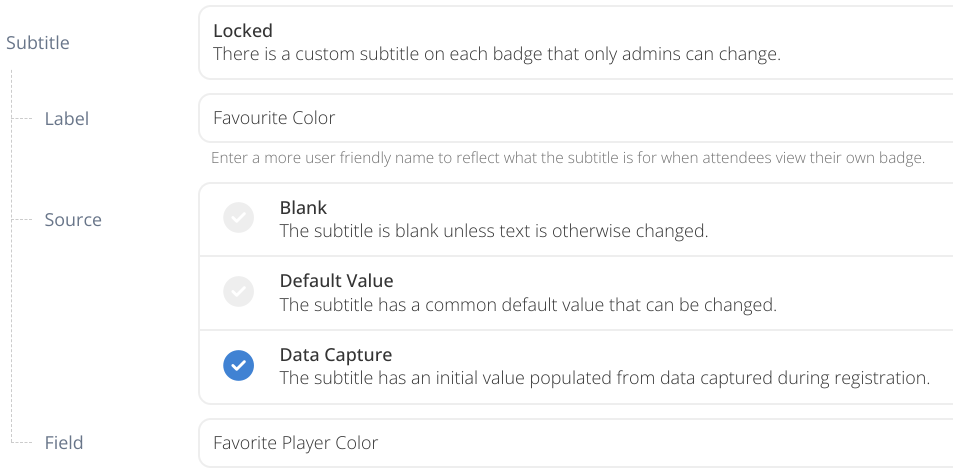
A Locked subtitle means every holder of that could have a different subtitle but it is managed by admins only, the attendee cannot edit it. Again you can provide a Label, but also you can decide how the subtitle is initially set using the Source input. The Data Capture option let’s you automatically pull in a captured field during the registration process.
An Open subtitle works in much the same was Locked, except that attendees themselves can edit the subtitle when viewing their badge. There is an added input called Guidance where you can give a little more information to the attendee about what they should be typing in.

If the convention has locked attendees from changing the name on their badge it will also lock them out of changing their subtitle.
